
How to Restore Old Photos in 2026 (Best Results, Free)
How to restore old photos at home in 2026: copy the print right, compare 5 tools, and fix faces, scratches and fading free. No sign-up, no watermark.
 GFPGAN.io Team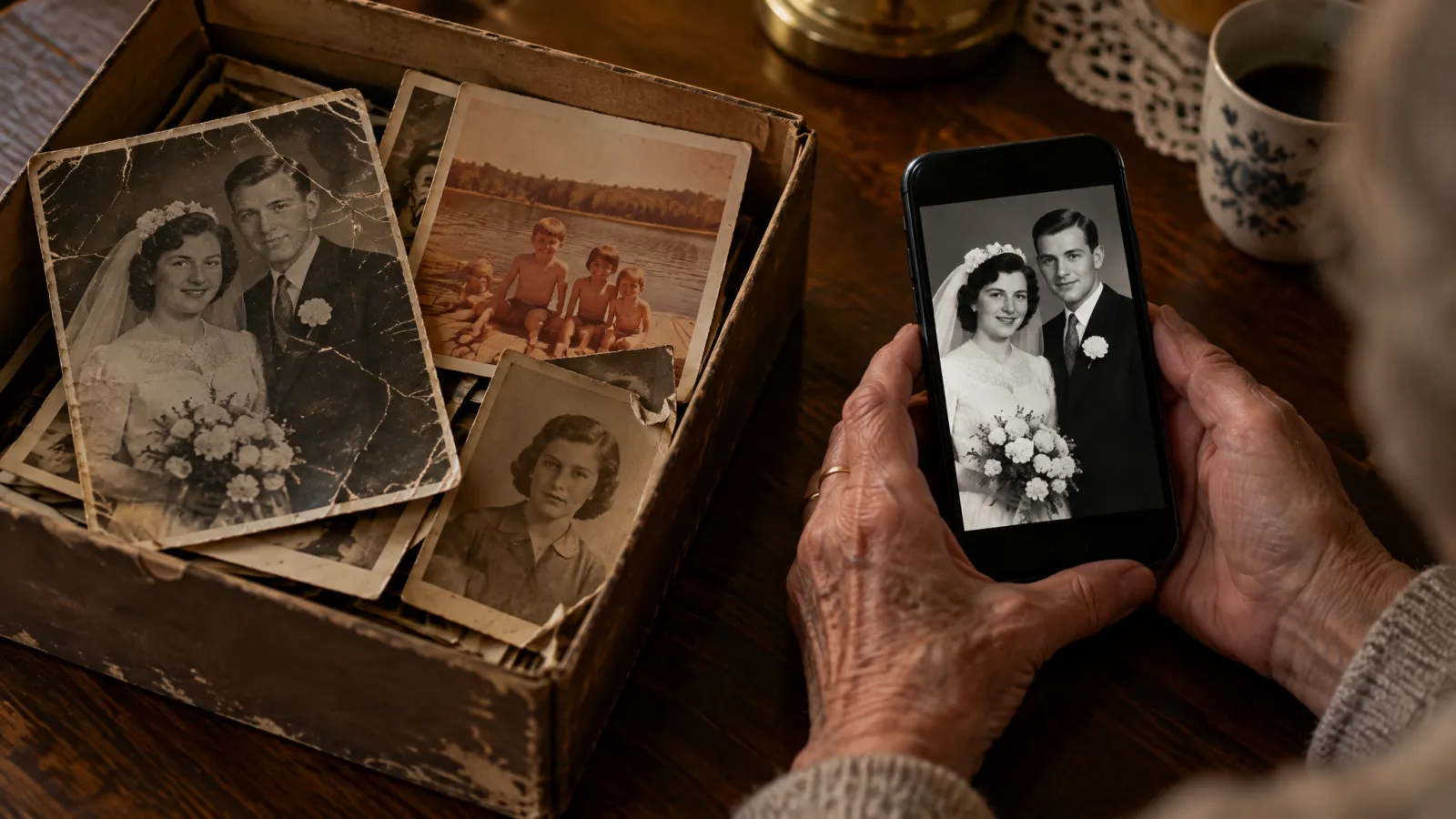
Somewhere in your house there's a box of prints that got worse every year. Grandpa's face has a crack through it, the wedding photo has gone yellow, and the pictures of the kids at the lake are mostly orange now.
This guide shows how to restore old photos yourself in 2026, with no darkroom and no Photoshop skills. Most of the work is in step 1. The restoring part is quick.
Short answer: make a sharp, flat copy of the print, run it through an AI restoration tool that keeps faces looking like the same person, then save a full-size copy in two places. Our pick for most families is GFPGAN.io, which we make. Below we compare it with four other options so you can judge for yourself.
Step 1: Make a good copy of the print
The AI can only work with what your copy shows it, so a clean copy matters more than which tool you pick.
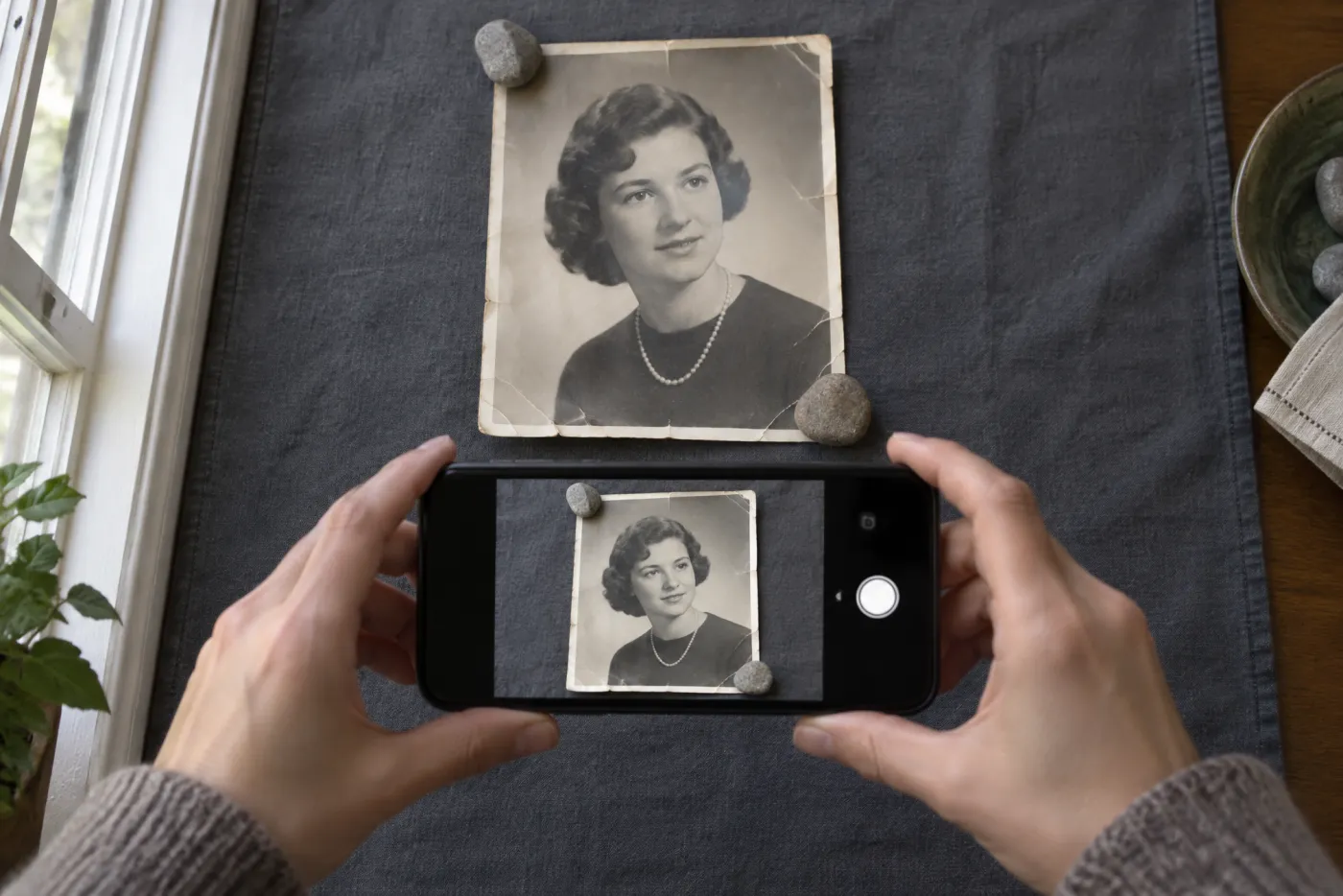
Flat print, window light, phone held straight above it. No flash.
- A flatbed scanner is best. Scan at 600 DPI. Small wallet photos can go to 1200 DPI.
- No scanner? Use your phone. Lay the print flat next to a window in daylight. Hold the phone straight above it, not at an angle, and turn the flash off. The flash leaves a white glare spot the AI will treat as damage.
- Take the photo out of the frame first. Glass adds reflections. If a print is stuck to the glass, photograph it through the glass rather than tearing it.
- Crop to the edges of the print so the tool spends its effort on the picture, not your table.
If the print is curled, put two small, smooth weights on the corners. Don't press on the faces.
Step 2: Pick a tool
We looked at the options people ask about most. Prices and free limits change often, so treat this as a snapshot from September 2026.
1. GFPGAN.io (our pick)
GFPGAN.io runs in your web browser, on a computer or phone. You upload the photo and get back a restored version with the face sharpened, scratches and small tears cleaned up, and natural color brought back.
We built it, so we're not neutral. Here's the case for trying it first:
- No account needed to try it.
- 1 free restoration every day.
- No watermark, and free downloads.
- Faces stay recognizable. It fixes the blur without turning Grandma into a stranger.
- Your photos stay private. Only you can see your results, and you can delete them any time.
Paid plans add 2K and 4K output for large prints. We're an independent site, not part of Tencent.
2. Adobe Photoshop (Photo Restoration filter)
Adobe Photoshop has a Photo Restoration filter under Neural Filters, with sliders for scratches and faces. You get the most control of any option here. You also need a paid Creative Cloud plan and some patience to learn it. It's a good fit if you already edit photos for work.
3. Remini
Remini is a popular phone app that sharpens faces fast. The free version shows ads, limits how many photos you can save, and adds a watermark. Clean downloads need a subscription, and some plans bill weekly, so check the price screen carefully before you tap "continue."
4. MyHeritage Photo Repair
MyHeritage is a family history site with Photo Repair and colorizing built in. It's handy if your family tree already lives there. You need an account, and free users get a watermark on downloads. Watermark-free files come with a paid MyHeritage plan.
5. Running GFPGAN or CodeFormer yourself
Free, but technical. GFPGAN (from Tencent ARC Lab) and CodeFormer are open-source face models you can install on your own computer if you know some Python and have a decent graphics card. Installation is where most people give up. They also focus on faces, so background scratches and faded color often stay.
| Tool | Free to try | Watermark on free downloads | Account or app needed | Skill needed |
|---|---|---|---|---|
| GFPGAN.io | 1 photo a day | No | No | Low |
Photoshop | Trial only | No | Yes | High |
Remini | Yes, limited | Yes | Phone app | Low |
MyHeritage | Yes, limited | Yes | Yes | Low |
GFPGAN / CodeFormer on your PC | Yes | No | Software install | High |
Step 3: Restore old photos with GFPGAN.io
These steps are the same on a computer or a phone.
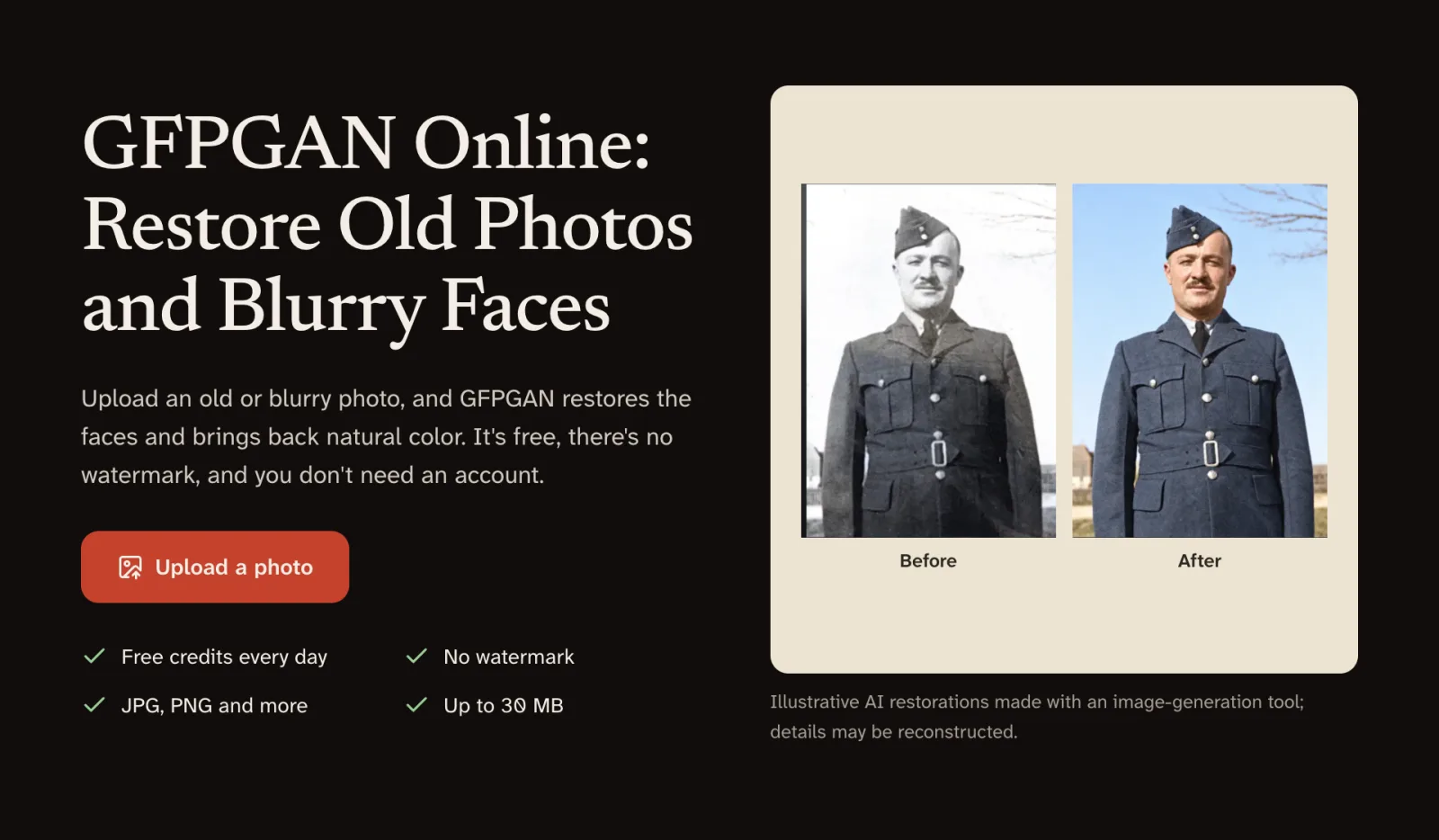
The upload button is the first thing on the home page.
- Open the GFPGAN.io photo restoration tool and press Upload a photo.
- Pick the copy you made in Step 1. JPG, PNG and other common formats work, up to 30 MB.
- Wait while it works, then drag the slider to compare the result with your original.
- Press Download.
This is a WWI-era portrait with deep tears across the face:
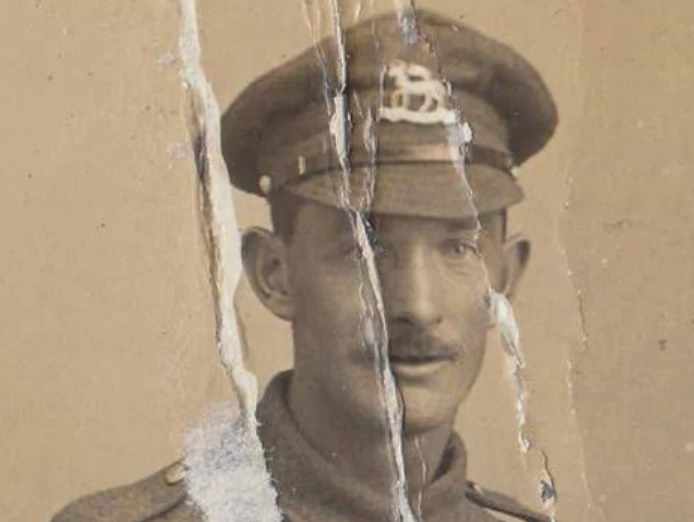
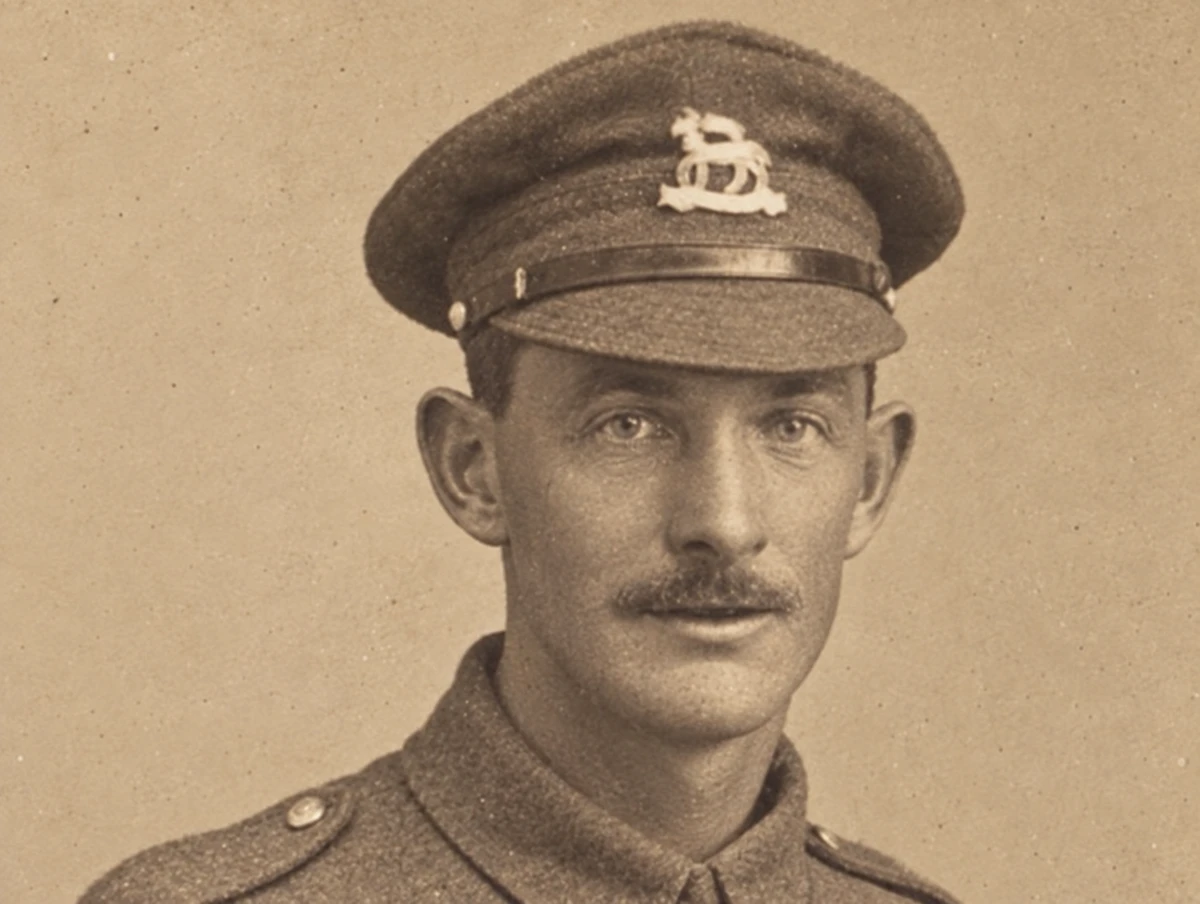
If the first result looks off, go back to Step 1. A sharper, flatter copy fixes most problems. Glare and tilted phone shots cause more bad results than damage does.
Step 4: Save it properly
A restored photo that lives only in your Downloads folder isn't safe.
- Keep the original scan too. Better tools will come along.
- Save the restored file with a clear name, like
grandma-wedding-1954-restored.jpg. - Store copies in two places, for example your computer and a cloud drive.
- Printing large? A 2K or 4K file will hold up better on an 8×10 than a standard one.
What AI can't fix
- Missing faces. If a tear took out half a face, the AI has to guess. The result may not look like the real person.
- Very tiny faces in big group shots come out less sharp than a close-up.
- Invented detail. AI rebuilds texture like hair, fabric and skin. It looks real, but it's a best guess, so don't use it as evidence of what someone wore.
For a one-of-a-kind family photo with heavy damage, a human restorer is still worth paying for.
Quick questions
Which AI can restore old photos best?
For free use with no watermark and no account, GFPGAN.io. For the most manual control, Photoshop. If your family tree is already on MyHeritage, its Photo Repair is convenient.
Can I restore old photos on my phone?
Yes. Photograph the print by a window, then open GFPGAN.io in your phone's browser. There's no app to install.
Will it change how the person looks?
It shouldn't. GFPGAN.io is built to keep the same face. If a result looks like someone else, the original copy was probably too blurry or tilted. Retake it and try again.
Got a box of prints waiting? Restore your first photo free.