
How to Animate Old Photos with AI (2026)
How to animate old photos with AI in 2026: get a clean copy, restore it first, describe one small motion, and avoid the mistakes that make faces look wrong.
 GFPGAN.io Team
There's a moment when you look at an old photo and wish the person in it would just turn their head and smile at you. AI can now do something close to that. It turns a still picture into a short video where Grandma laughs, a couple hugs, or a baby looks up at whoever was holding the camera.
This guide shows how to animate old photos so the result still looks like the person you remember. The tools are easy. What makes the difference is the photo you start from and the words you use.
Short answer: make a clean, sharp copy of the photo, restore it if it's faded or scratched, then ask an image-to-video tool for one small, natural movement, such as a smile, a wave or a hug. You'll get a clip of about five seconds. You can do all of it on GFPGAN.io, which we make. Below we also explain how it compares with other options.
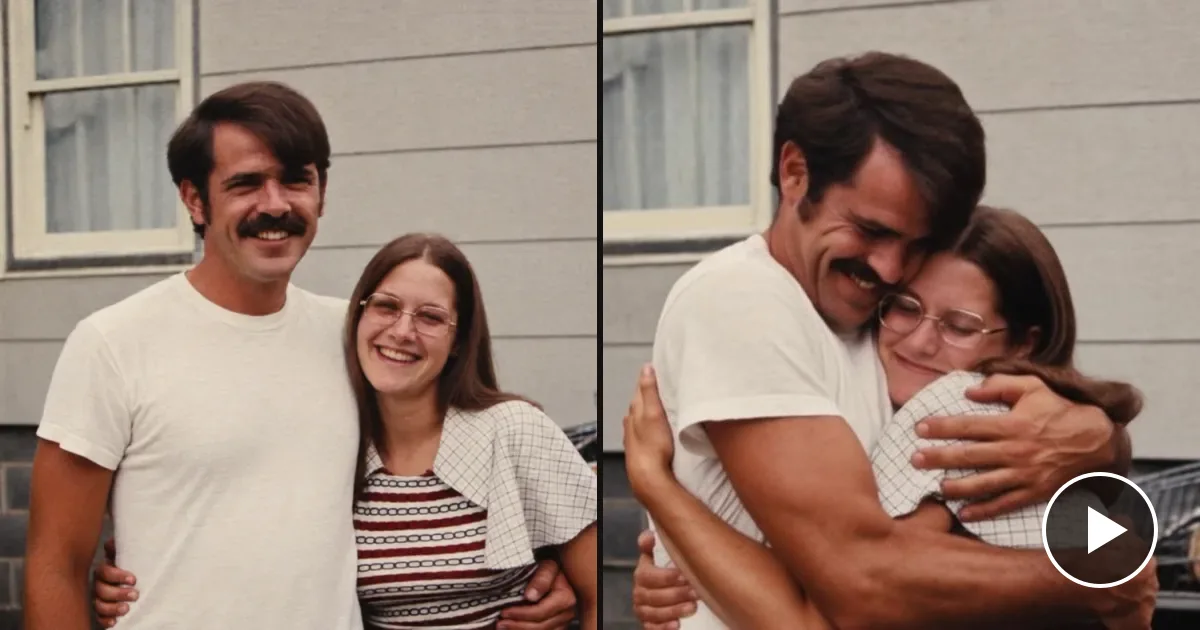
A restored photo from the 1970s. The motion asked for: "The two of them turn to each other and hug."
What "animating" a photo actually does
An AI photo-to-video model looks at your photo as the first frame of a film and imagines the next few seconds. It keeps the faces, clothes and background, and moves them in the way you describe. Nothing is filmed, so treat the result as a keepsake, not a record of what really happened.
Good results come from small, believable movements. A smile spreading across a face, a turn toward the camera, hair moving in a breeze. Big actions, like someone getting up and walking away, ask the model to invent too much, and that's where faces start to drift.
Step 1: Start with a clean copy
The video can only be as good as the picture it starts from.
- Scan the print if you can, at 600 DPI.
- No scanner? Use your phone. Lay the photo flat by a window in daylight, hold the phone straight above it and turn the flash off.
- Take it out of the frame so the glass doesn't add reflections, and crop to the edges of the print.
Our guide on how to restore old photos goes through this step in more detail.
Step 2: Restore before you animate
Scratches, dust, blur and fading don't disappear when a photo starts to move. The model treats them as part of the picture, so a crack across a cheek can bend and wobble with the face. Restoring the photo first removes that damage and gives the model sharper faces to work from.
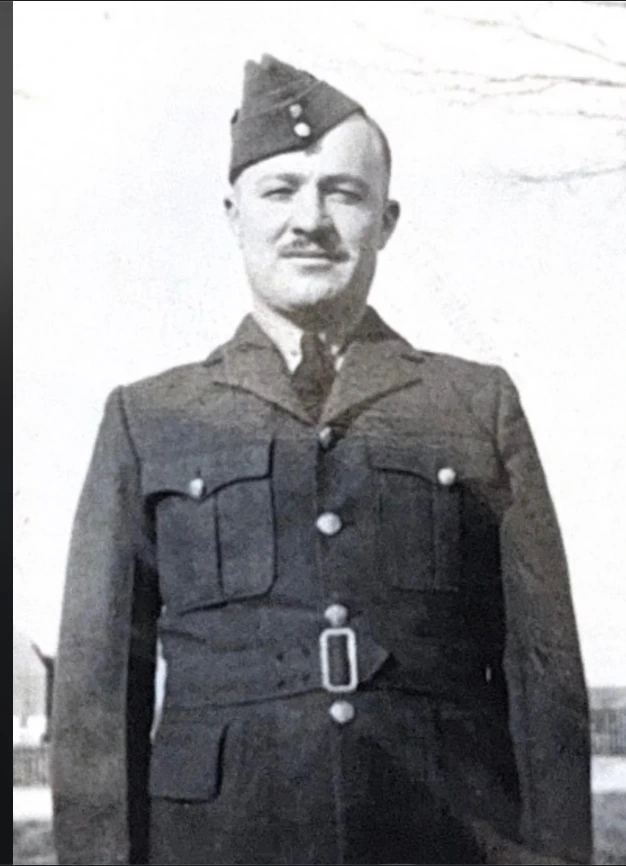
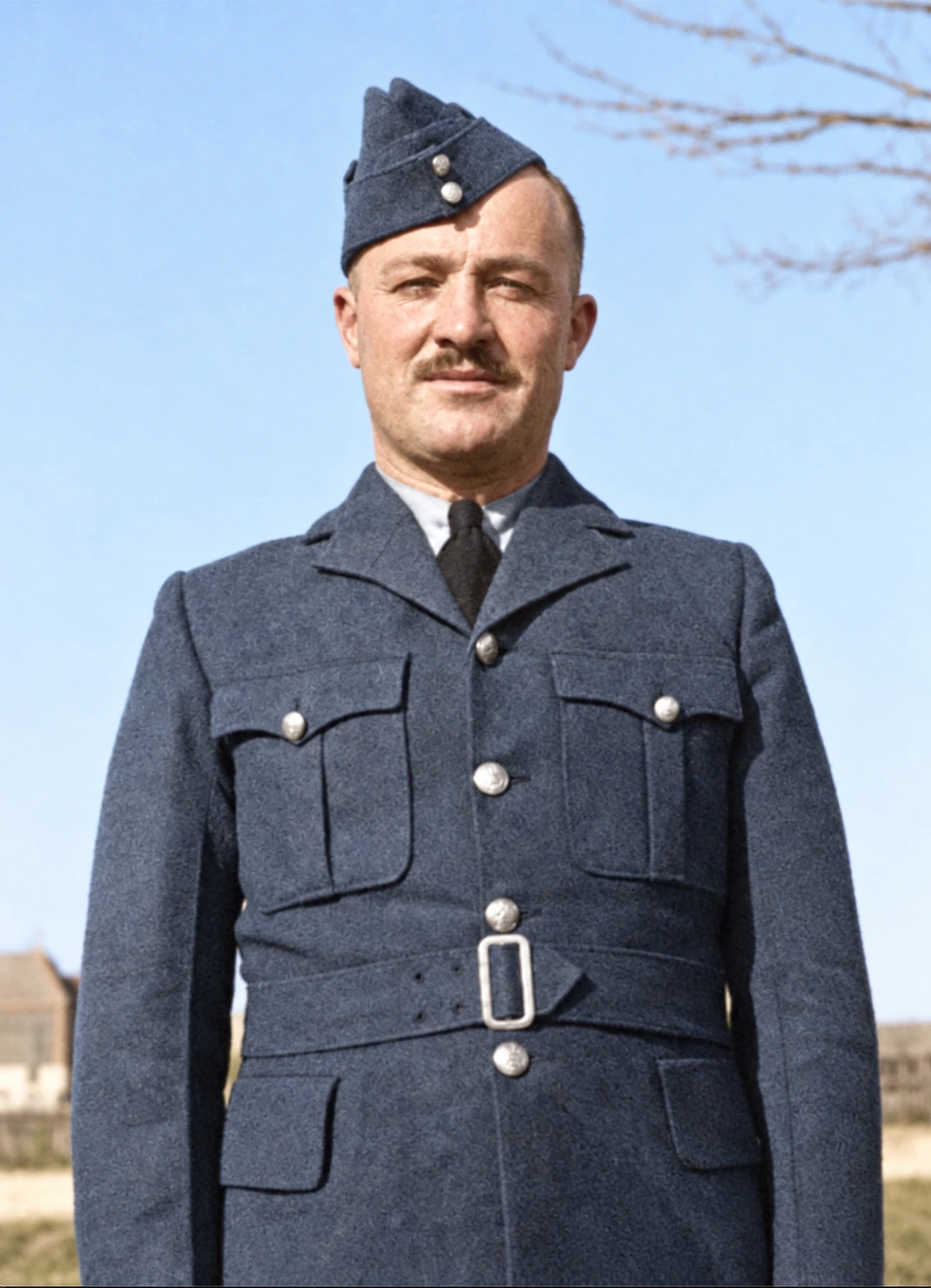
Restore first (left: the original, right: restored), then animate the restored version.
On GFPGAN.io you can restore the photo and then pick it straight from your restored photos when you make the video, so there's nothing to download and upload again.
Step 3: Choose a photo the AI can work with
Some photos animate much better than others. When you animate old photos of family, check for these first:
- Faces are clear and not tiny. A face that fills a good part of the picture keeps its likeness best.
- Front-on or a slight angle. Strong profiles and faces half hidden by hats or shadows give weaker results.
- A few people, not a crowd. One to three people move well. In large group photos, each face gets very little detail.
- Black-and-white is fine. The video keeps the photo's colors, so a black-and-white portrait stays black-and-white. If you'd like color, colorize the photo when you restore it.
Step 4: Describe one small motion
This is the step most guides skip. Many tools only offer presets, but the best results come from saying exactly what should happen, in plain words. On GFPGAN.io you type a sentence in your own language, or tap an idea and change it to fit your photo.
"Everyone in the photo bursts out laughing." One short sentence, one action.
A few rules that make a big difference:
- One action per video. "She looks up and smiles" works. "She walks to the window, opens it and waves to the neighbors" doesn't.
- Describe the movement, not the picture. The model can already see who is in the photo. Tell it what changes.
- Keep it gentle. Small movements look natural. A huge laugh or a fast turn is more likely to change a face.
- Leave the box empty if you're unsure. You'll get quiet signs of life: blinking, breathing, a soft smile.
Ideas that work well with family photos:
- "Turns toward the camera and slowly smiles."
- "Raises a hand, waves at the camera, then laughs."
- "A light breeze moves her hair and the leaves behind her."
- "The child looks up from the toy and grins."
- "The couple sways slowly, as if dancing at their wedding."
- "The mother looks down at her baby and gently kisses the top of its head."
"The mother looks down at her baby and gently kisses the top of its head."
Step 5: Bring two separate photos together
A question we hear often: "I have a photo of my grandmother and a different one of my grandfather. Can I make them hug?" You can, with one extra step. The two photos are first merged into a single picture of both people, and you pick the version that looks most like them. That picture is then animated like any other photo.
Made from two separate photos: a soldier in color and a woman in black-and-white.
Checking the merged picture before the video is made matters. If the likeness is off there, it will be off in the video too, so it's worth trying again until both people look right.
Which tool should you use?
There are three kinds of tools for this, and each suits a different person.
| Kind of tool | Describe your own motion | Start from two photos | Restore in the same place |
|---|---|---|---|
| GFPGAN.io | Yes, in any language, or tap an idea | Yes | Yes |
| Face animation apps (for example MyHeritage Deep Nostalgia) | No, preset movements | No | Yes, with their photo tools |
| Template and effect apps ("AI hug" and similar) | No, you pick an effect | Some do | Varies |
| General AI video makers (for example Kling, Runway) | Yes | Some, with reference images | No |
GFPGAN.io is built to animate old photos: restore, then animate, in one place. Each 5-second video uses 20 credits, which any credit pack or plan includes, and there's no watermark. If a video can't be made, the credits go back to your account. We make it, so weigh our view accordingly.
Face animation apps are quick and fun for a single portrait, but you choose from preset movements rather than saying what should happen.
Template apps are fast when the effect you want exists. They're less useful when it doesn't, and some add a watermark to free downloads.
General AI video makers are the most flexible and the most work. They aren't built around old photos, so restoring the picture and judging the likeness is up to you.
What to expect
- Short clips. About five seconds, without sound. That's enough for one moment, which is usually what you want from an old photo.
- A minute or two of waiting. Sometimes a few minutes when many people are making videos.
- Small changes in likeness. The face stays close to the photo, but very big expressions can shift it slightly. If a result isn't right, change a word and try again.
- Some photos won't work. Very small or hidden faces, or requests that aren't allowed, can fail.
A gentle note on photos of people you've lost
Many people animate photos of a parent or grandparent who has died. Seeing them smile again can be lovely, and it can also catch someone off guard. If you're sharing the video with family, tell them what it is before they press play, and keep the original photo with it. It's a memory brought to life, not footage, and it's kind to say so.
Frequently asked questions
Can I animate old photos for free? Some apps offer a free trial or a free daily allowance. On GFPGAN.io, restoring photos has a free daily allowance, but videos are a paid feature at 20 credits each.
How long does it take? Usually one to two minutes per video. Restoring the photo first takes about a minute more.
Does it work on black-and-white photos? Yes. The video keeps the photo's colors, so black-and-white stays black-and-white unless you colorize the photo first.
Can the people in the photo talk? Not on GFPGAN.io. The videos have no sound, and we focus on natural movement rather than speech.
Who can see my photos and videos? On GFPGAN.io, only you. You can download or delete them at any time.
Ready to try it with one of your own photos? Animate a photo, or restore it first if it's faded or damaged.